
Optimized for Larger Screens

This website is best viewed on a tablet or desktop computer. Please switch to a larger screen for the full experience.

Guide · MAMIAS

What do you want to do?

Browse the Mediterranean non-indigenous species, reuse the data, and send your own records, task by task.

PDF

Start here

Getting started

Getting started Where: Home page About 2 minutes

Find your way around MAMIAS

MAMIAS is the regional database of non-indigenous marine species in the Mediterranean, run by SPA/RAC for UNEP/MAP. Anyone can browse it; a free account lets you contribute.

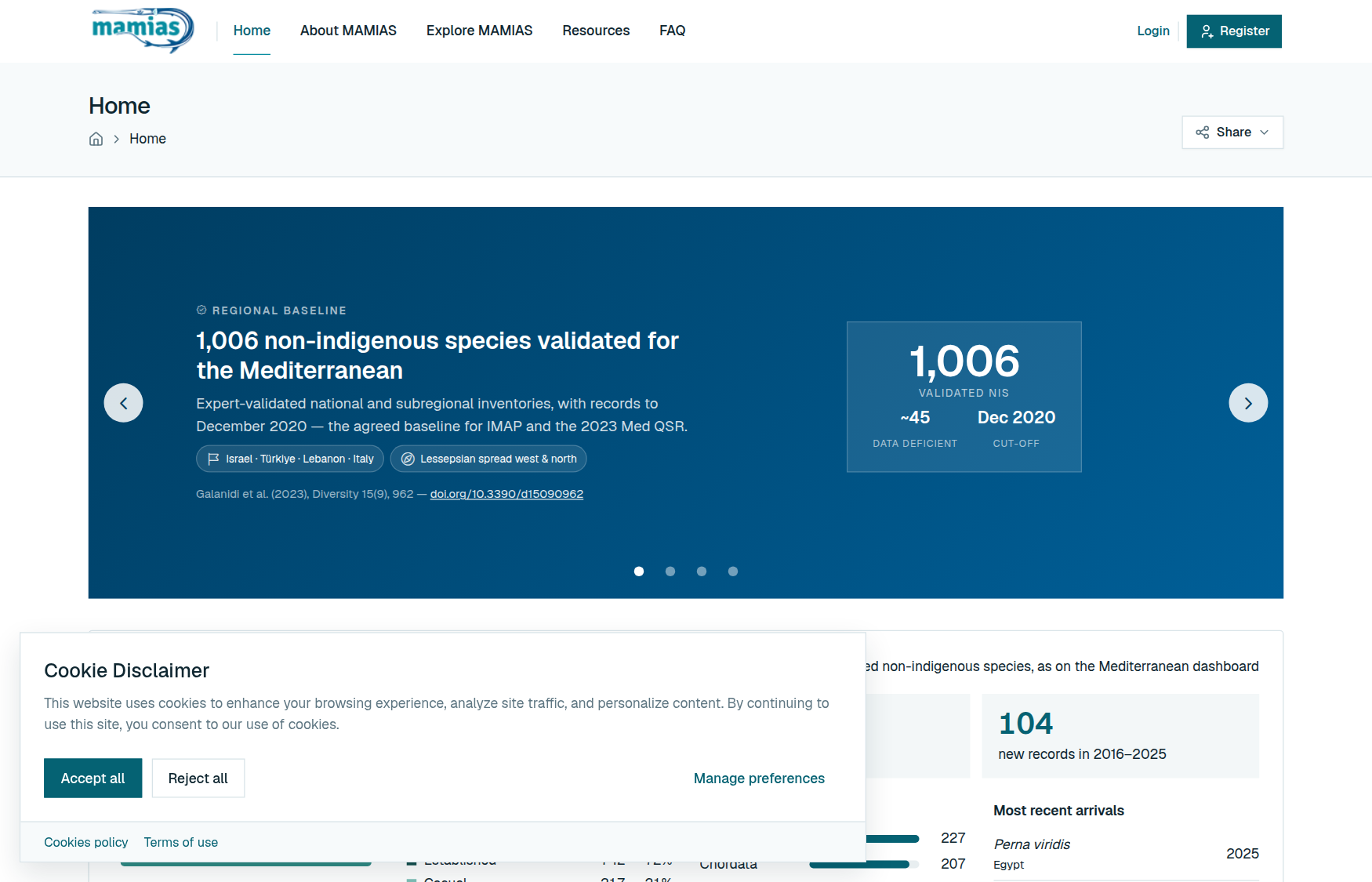
  1. 1 Open the home page. MAMIAS at a glance sums up the Mediterranean: species reported, per EcAp sub-region, how established they are, main groups and latest arrivals.
  2. 2 Explore MAMIAS leads to the data explorer, the maps, the literature and the dashboards. None of them needs an account.
  3. 3 Sign up only to contribute: references, sightings and new species suggestions.
  4. 4 Everything contributors send is checked by the MAMIAS team before it appears in the database.
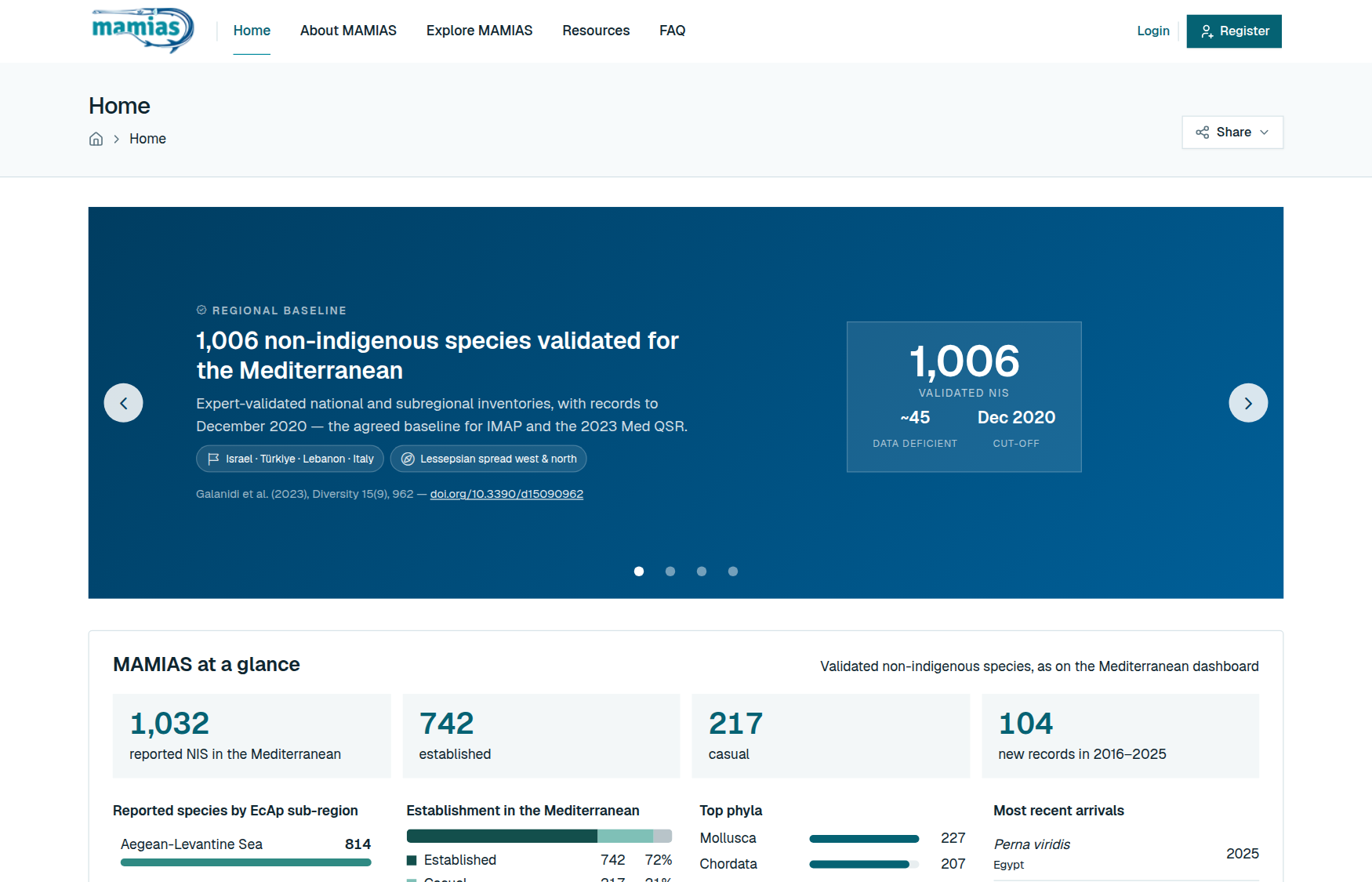
The home page and its MAMIAS at a glance block.

Tip:Use a computer or a tablet: on a phone-sized screen the site asks for a larger screen.

Related: Choose your cookies · Get help on a page · Create an account
Getting started Where: Any page About a minute

Choose your cookies

On your first visit a dialog asks for your choice. The site stays dimmed and does not respond until you answer.

  1. 1 Click Accept all or Reject all. The site works either way.
  2. 2 To change your mind later, click Change Cookie Preferences at the bottom of any page.
  3. 3 The Cookies policy page lists each cookie, why it is set and for how long.
The cookie dialog on a first visit.

Related: Find your way around MAMIAS · Know which emails MAMIAS sends

Getting started Where: Any page About 2 minutes

Get help on a page

Most pages explain themselves. When they do not, help is one click away.

  1. 1 Rest the pointer on a button: a short explanation appears.
  2. 2 Click Guide, in the page header next to the breadcrumbs, for step-by-step help on that page.
  3. 3 Page dimmed and nothing responds? Answer the cookie dialog. A map stays grey? The map server is briefly unreachable: reload later.
  4. 4 For anything else, write to the MAMIAS team at the contact address on the Legal notice page.

Tip:Phone screens are not supported yet: the site asks for a computer or a tablet.

Related: Choose your cookies · Confirm your email address · Reset a forgotten password

Explore the data

Explore the data Where: Explore MAMIAS › Data About 2 minutes

Search the species catalogue

The data explorer lists every non-indigenous species in the catalogue, one row each, with its first record in the Mediterranean.

  1. 1 Open Explore MAMIAS › Data.
  2. 2 Type in Search: a name, or a family such as Gobiidae. The table narrows as you type.
  3. 3 Click a column title to sort by it, again to reverse. Choose how many species per page under the table.
  4. 4 Click a species, or View data at the end of its row, to open its page.
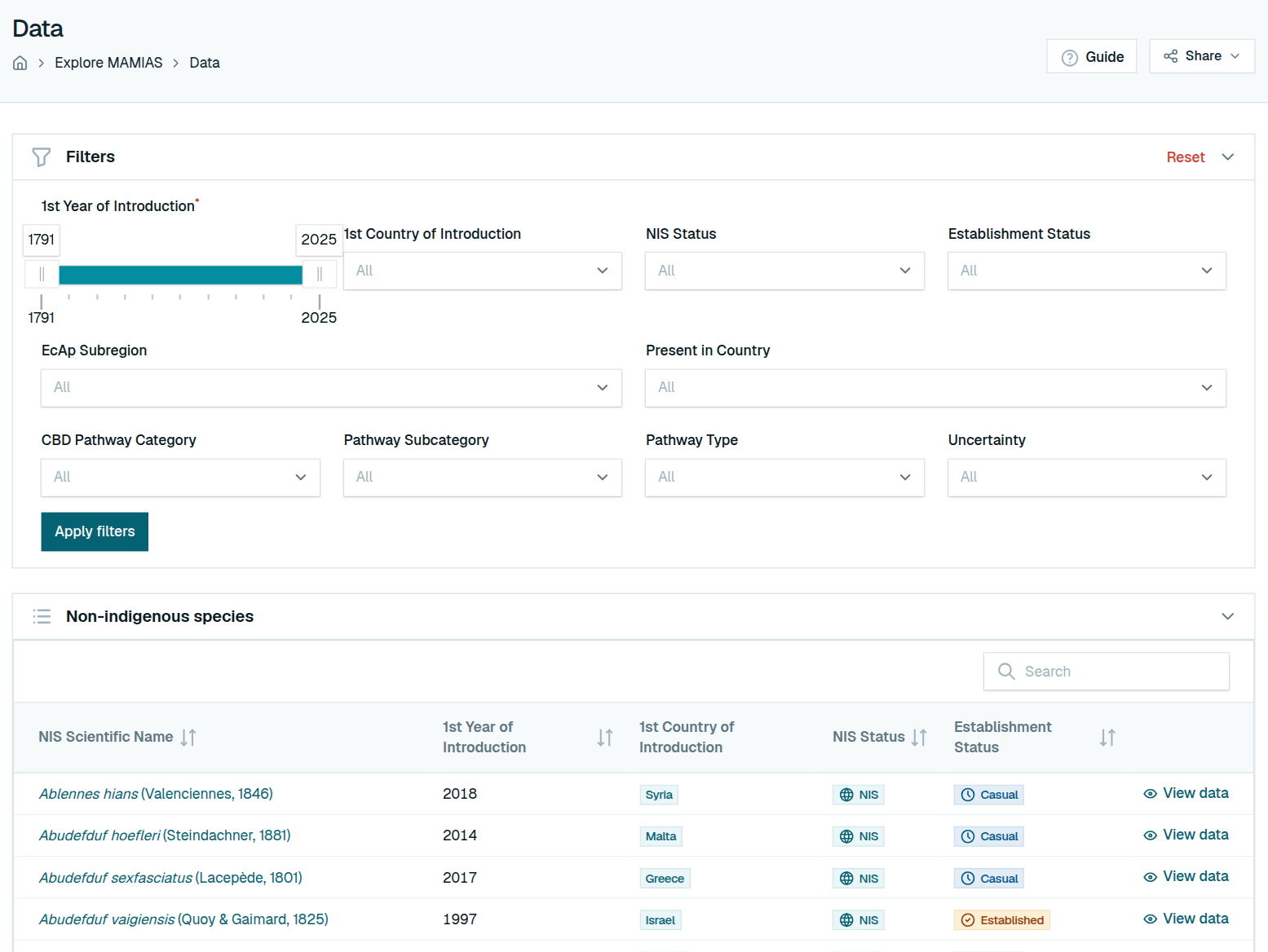
Filters above the species table.

Tip:"Recorded as …" under a name means the species was first published under another name.

Related: Filter the species catalogue · Read a species page · See where species were recorded

Explore the data Where: Explore MAMIAS › Data › Filters About 2 minutes

Filter the species catalogue

The filters change the table only when you apply them, so you can set several at once.

  1. 1 Pick values in 1st Year of Introduction, 1st Country of Introduction, NIS Status, Establishment Status, EcAp Subregion, Present in Country or the CBD Pathway filters.
  2. 2 Click Apply filters. Within a filter a species matches any value; across filters it must match all.
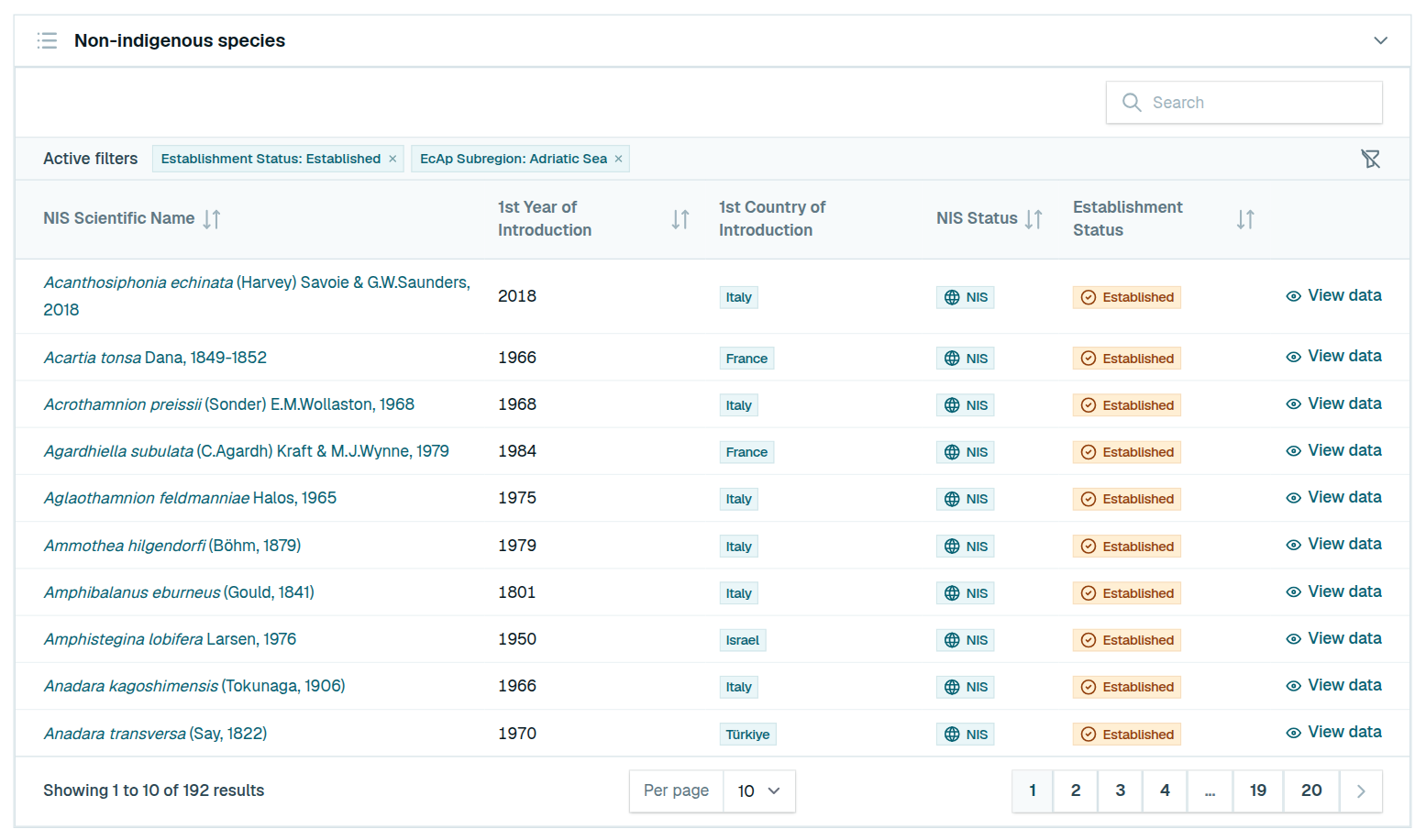
  3. 3 Each filter now shows as a chip under Active filters. Click its × to drop it alone.
  4. 4 Reset, in the filters' title bar, clears them all.
Applied filters shown as chips above the table.

Tip:With both year handles at the ends, species whose year is unknown are kept too.

Related: Search the species catalogue · See where species were recorded

Explore the data Where: Explore MAMIAS › Data › a species About 3 minutes

Read a species page

A species page holds everything MAMIAS knows about one species, in three parts.

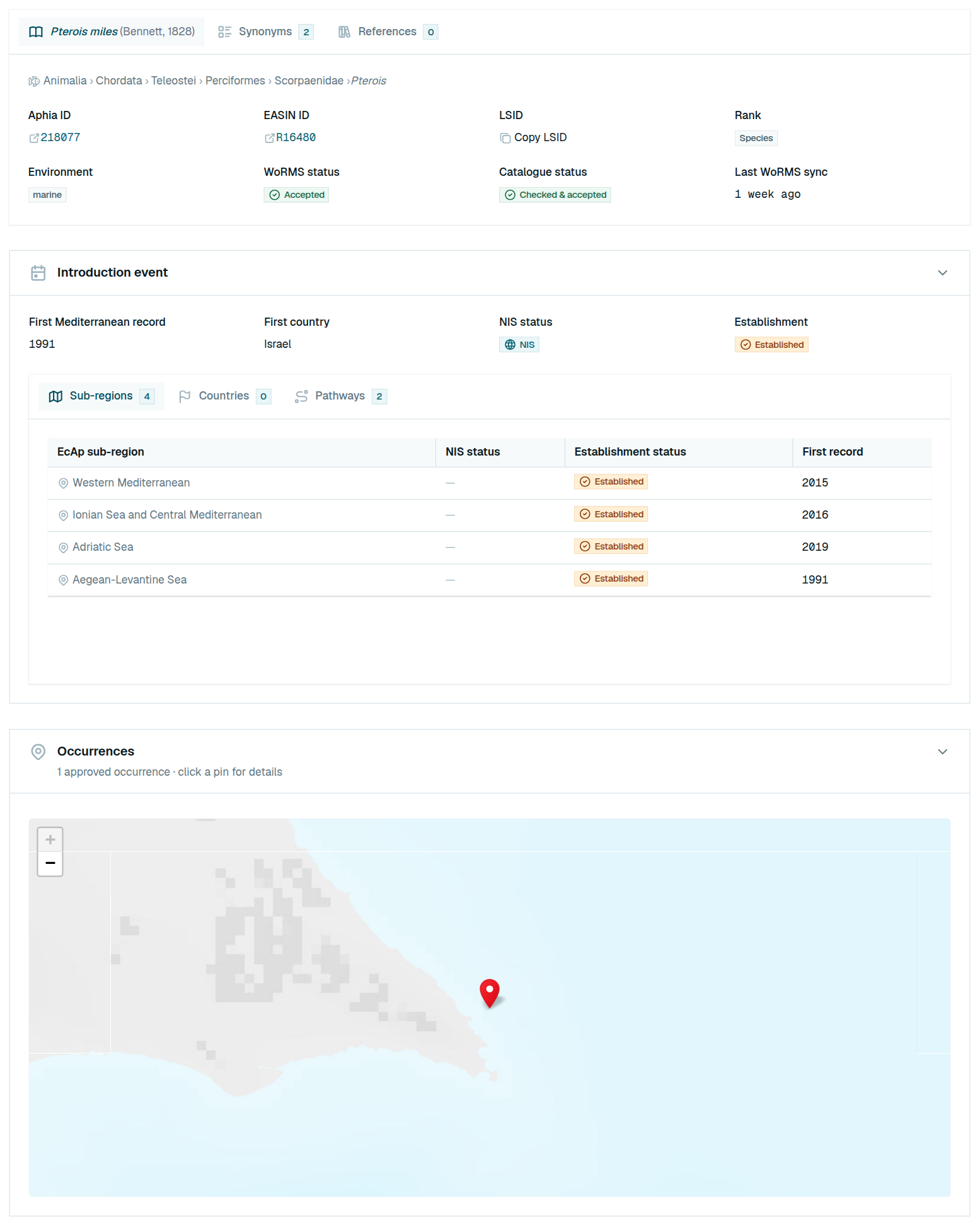
  1. 1 The species tabs: classification, Aphia ID (a link to WoRMS), EASIN ID, LSID (click to copy) and statuses. Synonyms and References sit beside it.
  2. 2 Introduction event: its first Mediterranean record, statuses and the reference behind it, with tabs for Sub-regions, Countries and Pathways.
  3. 3 Occurrences: a map of every approved sighting. Click a pin for its date, coordinates, depth, abundance and habitats.
  4. 4 View expansion over time opens the species on the expansion timeline. The breadcrumb leads back to the data explorer.
A species page.
A species page.

Tip:The Pathways tab gives the Mediterranean pathway first, then each country's and sub-region's where experts described them.

Related: Search the species catalogue · Follow one species through the years

Explore the data Where: Explore MAMIAS › Maps › Distribution About 3 minutes

See where species were recorded

The map shows the species by EcAp sub-region, or by the country where each was first recorded in the Mediterranean.

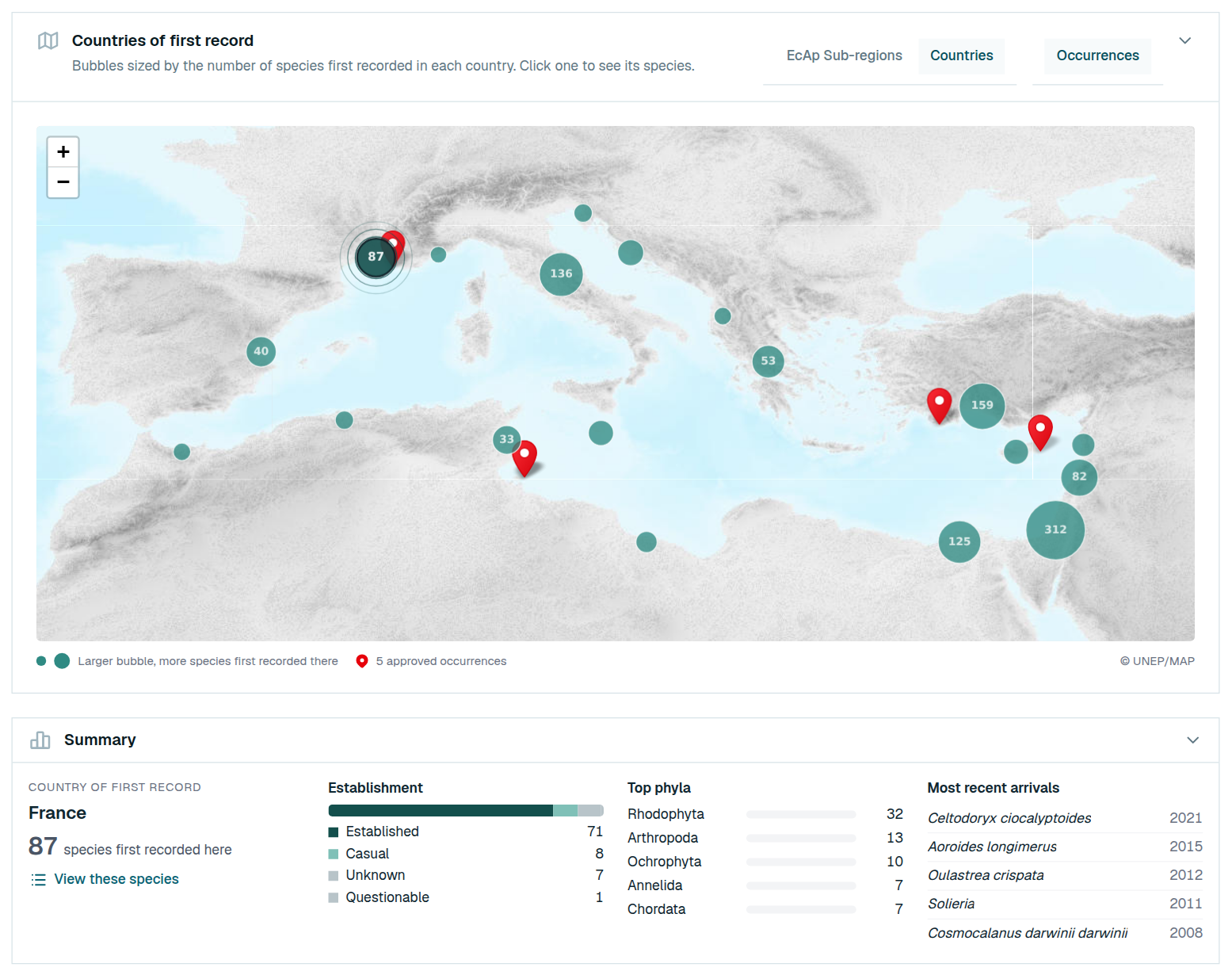
  1. 1 Choose a layer in the map's title bar: EcAp Sub-regions (shaded by number of species) or Countries (one bubble per country of first record).
  2. 2 Click a sub-region or a bubble to pick it. The summary and the table below switch to it.
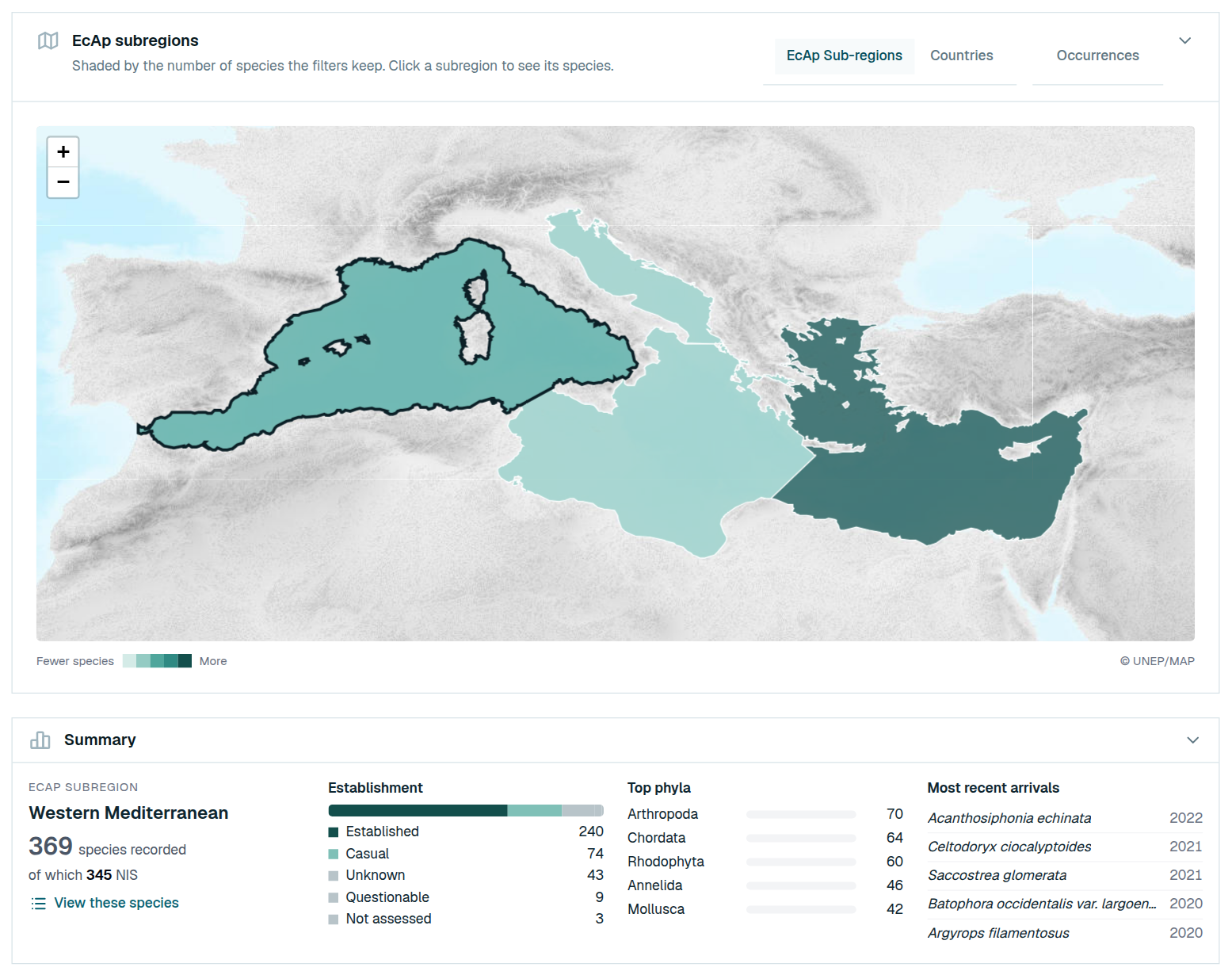
  3. 3 Read the summary: number of species, establishment, top phyla and most recent arrivals.
  4. 4 Use the species table: search, sort, and click a row or View data to open the species.
A sub-region picked, with its summary.

Tip:The address keeps the layer and the area you picked, so a link opens the same view.

Related: Read a species page · Filter the map · Show sightings on the map

Explore the data Where: Explore MAMIAS › Maps › Distribution › Filters About 2 minutes

Filter the map

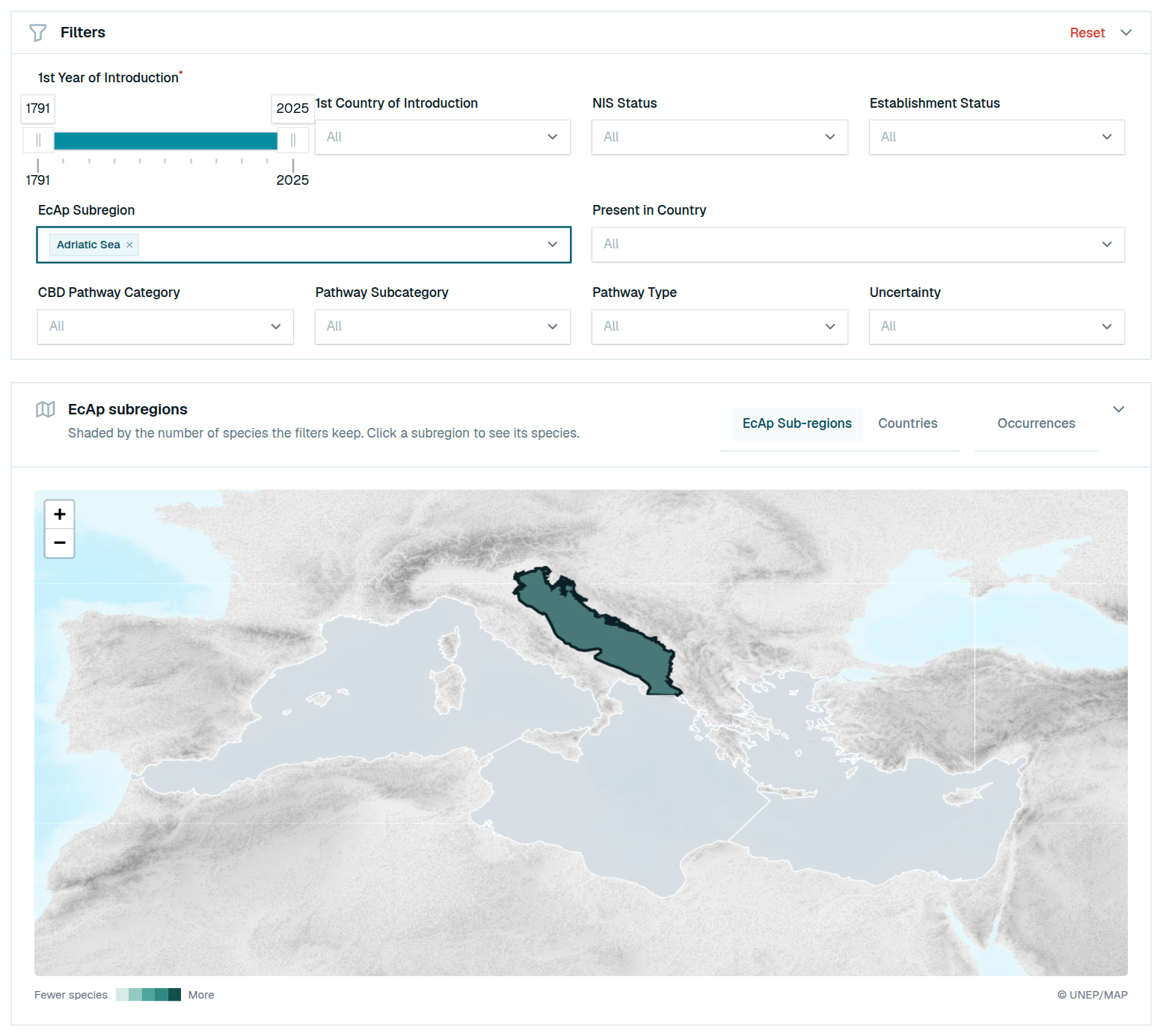
The map has the same filters as the data explorer, but they apply at once: there is no button to press.

  1. 1 Change any filter: year, country, NIS or establishment status, sub-region, country of presence or pathway.
  2. 2 The map, the summary and the table redraw together.
  3. 3 With EcAp Subregion set, only the sub-regions you picked are shaded; the others turn grey and cannot be picked.
  4. 4 Reset, in the filters' title bar, clears them all.
The EcAp filter narrowing the map to the Adriatic Sea.

Tip:NIS and Establishment Status are basin-wide; the summary's Establishment block is for the picked sub-region, so the two can differ.

Related: Filter the species catalogue · See where species were recorded

Explore the data Where: Explore MAMIAS › Maps › Distribution About a minute

Show sightings on the map

Sightings are reported by contributors and checked by the MAMIAS team before they appear.

  1. 1 Click Occurrences in the map's title bar. It works on either layer.
  2. 2 Zoom with + and − or the mouse wheel, and drag to move.
  3. 3 Click a pin for its date, coordinates, depth, abundance and habitats.
Countries of first record, with the occurrence pins.

Tip:Following Barcelona Convention practice, the map draws no national boundaries.

Related: See where species were recorded · Report a sighting

Explore the data Where: Explore MAMIAS › Maps › Species expansion About 3 minutes

Follow one species through the years

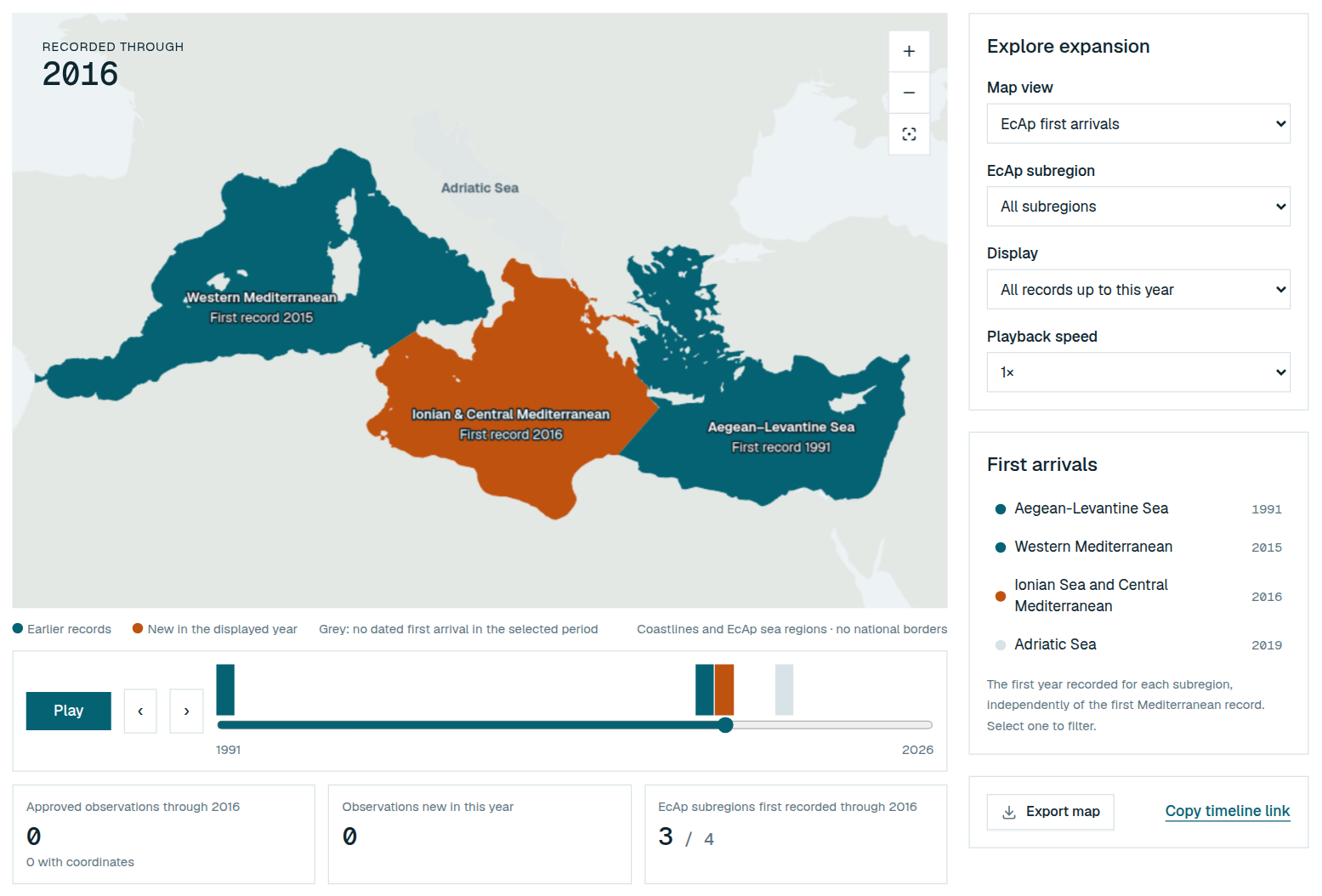
The page shows one species' approved observations, and the first year it was recorded in each EcAp sub-region.

  1. 1 Pick a species at the top right. Without one, the page opens on Pterois miles.
  2. 2 Choose a Map view: Approved occurrences or EcAp first arrivals. Set Display and, if you like, one sub-region.
  3. 3 Press Play, use ‹ and ›, drag the slider or click a bar to change year.
  4. 4 Read First arrivals and the Observations table under the map.
Teal is earlier records, orange is new in the displayed year.

Tip:A gap in observations does not mean the species is absent, and recorded spread is not its actual route.

Related: Read a species page · Export or share an expansion map

Explore the data Where: Explore MAMIAS › Maps › Species expansion › Export map About 2 minutes

Export or share an expansion map

Exports use your current view, year and sub-region.

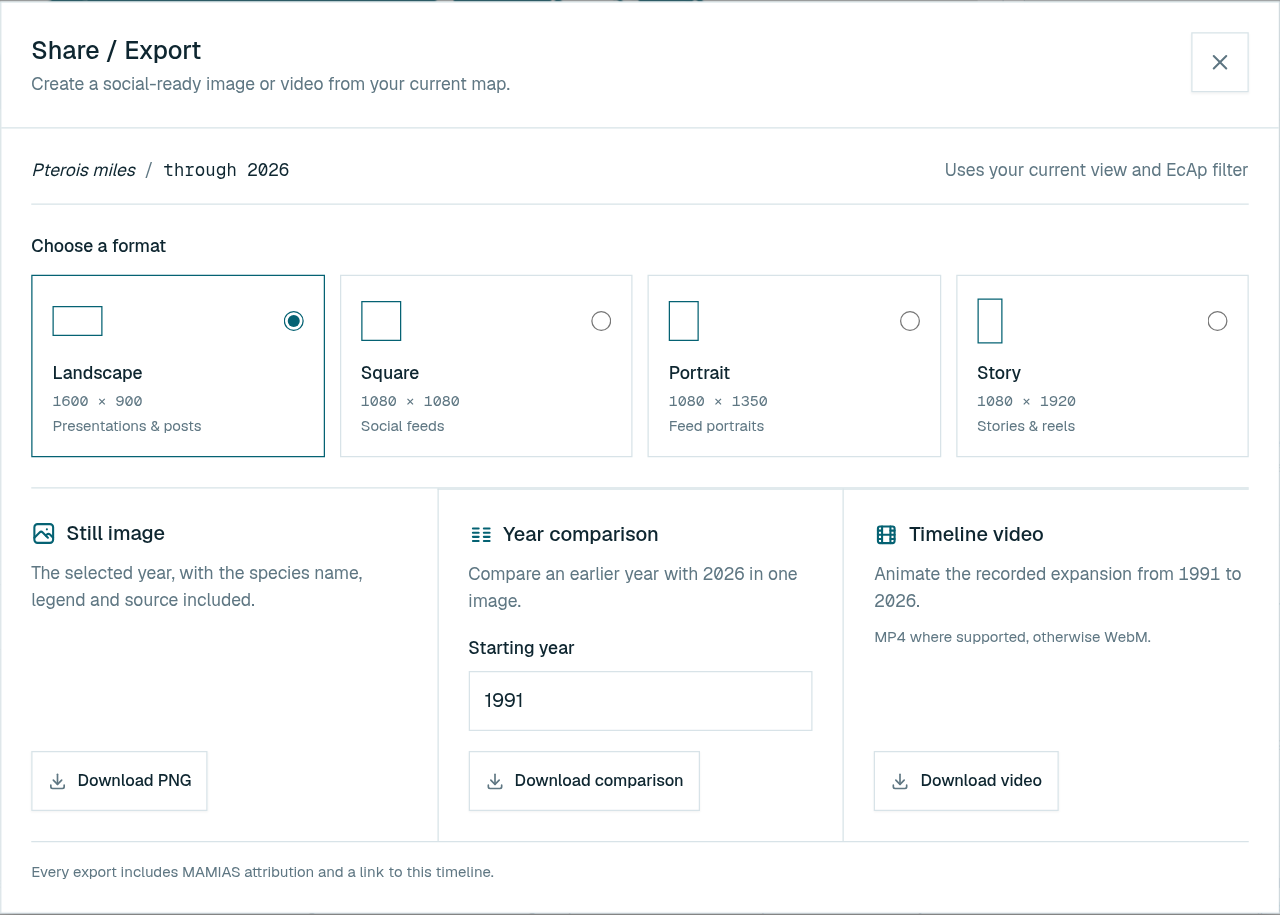
  1. 1 Click Export map and choose a format: landscape, square, portrait or story.
  2. 2 Download PNG for the displayed year, Download comparison for an earlier year beside it, or Download video for the whole timeline.
  3. 3 Copy timeline link keeps the species, year, view, display and sub-region.
Formats, image, comparison and video.

Tip:The video is MP4 where the browser supports it, otherwise WebM.

Related: Follow one species through the years · Download and cite the data

Explore the data Where: Explore MAMIAS › Literature About 2 minutes

Find a publication

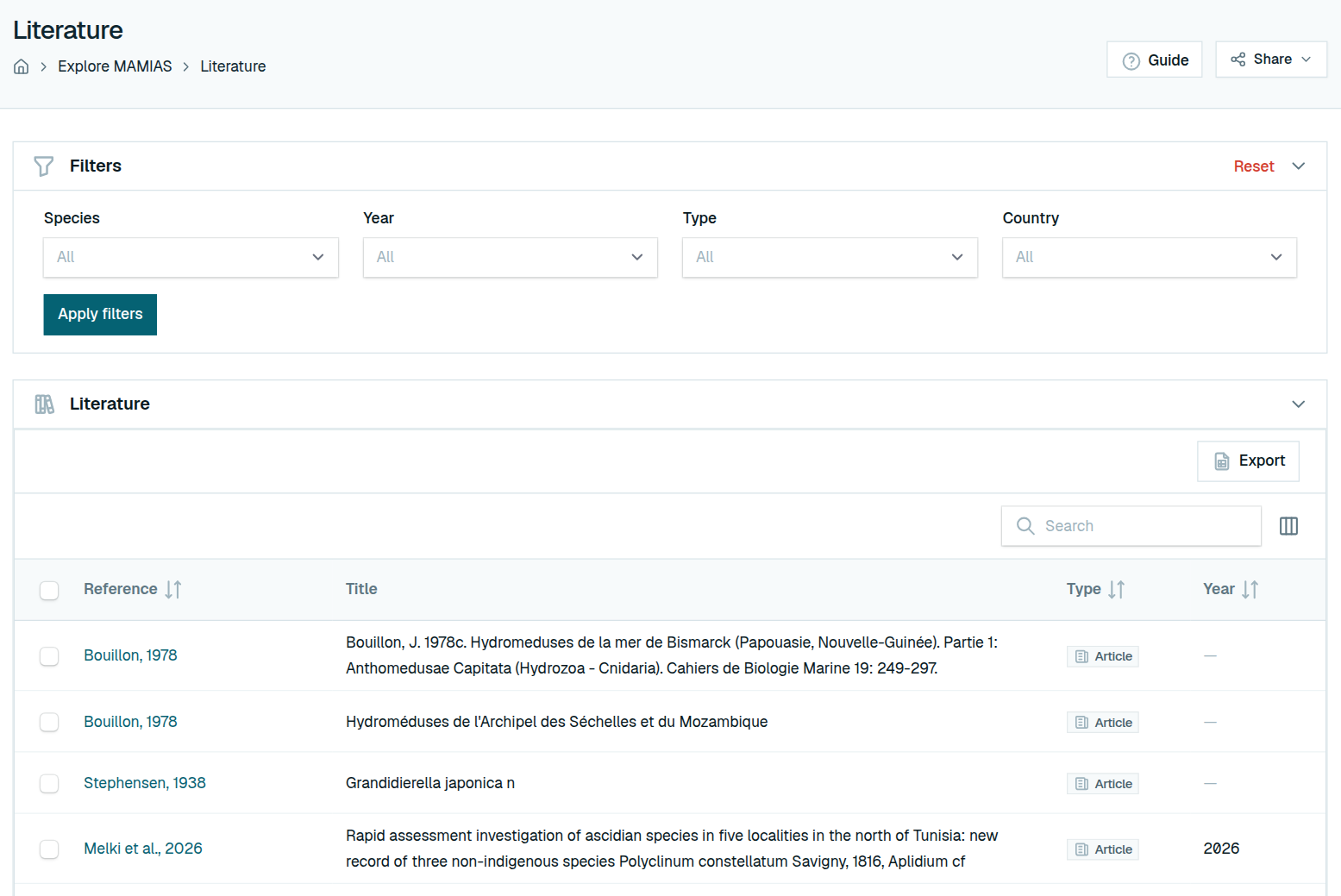
The literature list holds the checked papers, reports, theses and books behind the records, newest first.

  1. 1 Type in Search: it looks through the references, their full text and their DOI.
  2. 2 Pick a Species, Year, Type or Country, then click Apply filters.
  3. 3 Click the short reference to open the publication through its DOI, or its web link.
  4. 4 Remove a filter with the × on its chip, or all of them with Reset.
Filters above the literature list.

Tip:A reference in red marked Retracted was withdrawn by its journal; do not rely on its findings.

Related: Export the literature to Excel · Add a bibliographic reference

Explore the data Where: Explore MAMIAS › Literature › Export About a minute

Export the literature to Excel

The file holds the MAMIAS code, short and full reference, type, year, DOI, link and whether it was retracted.

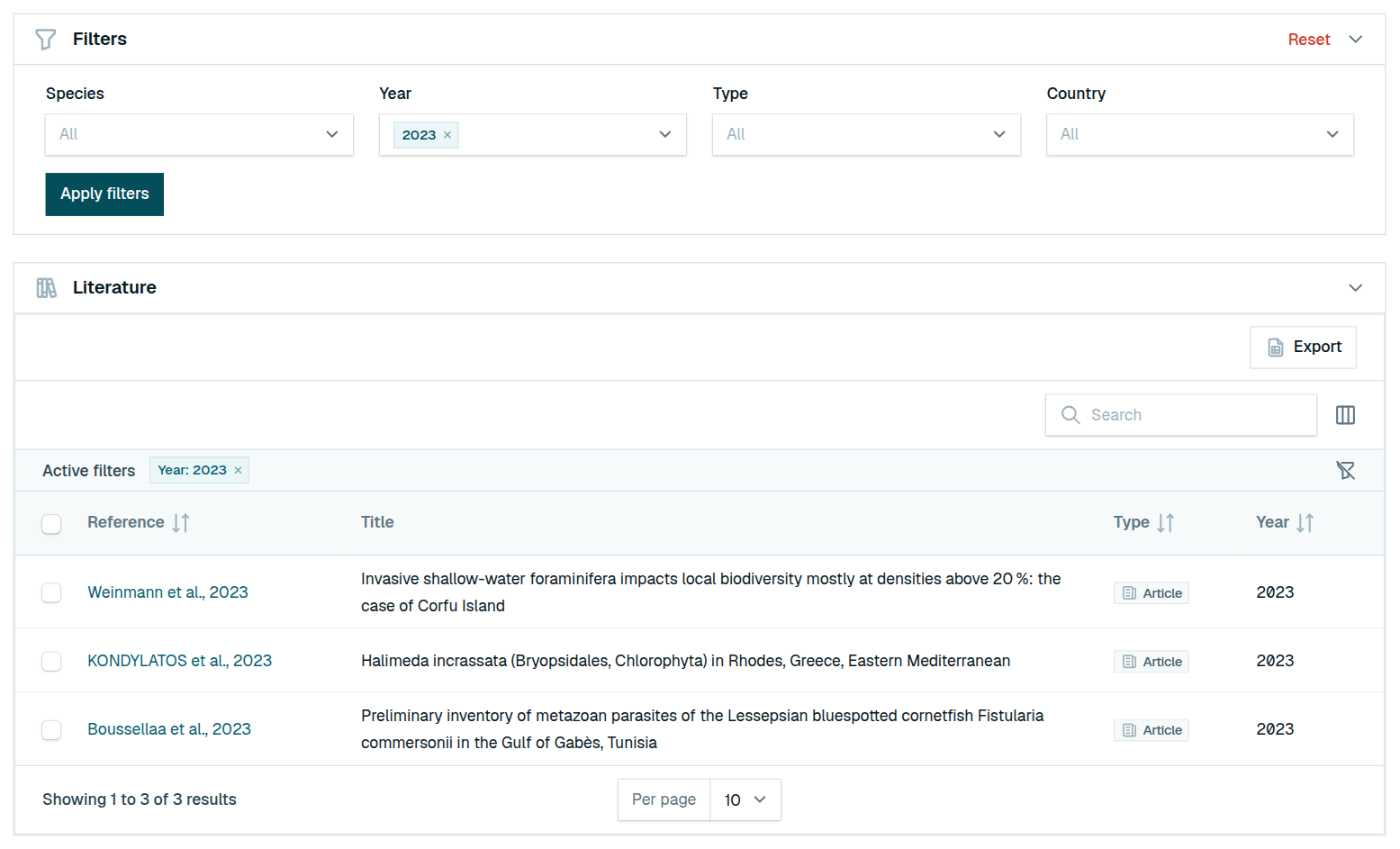
  1. 1 Set your filters, search and sort first: the export follows them, all pages included.
  2. 2 Click Export. You get MAMIAS_<date>_literatures.xlsx.
  3. 3 For only some rows, tick their boxes, then choose Export selected.
The list filtered on one year, ready to export.

Tip:The data may be reused under CC BY 4.0; please cite MAMIAS.

Related: Find a publication · Download and cite the data

Explore the data Where: Explore MAMIAS › Dashboards About 2 minutes

Read the dashboards

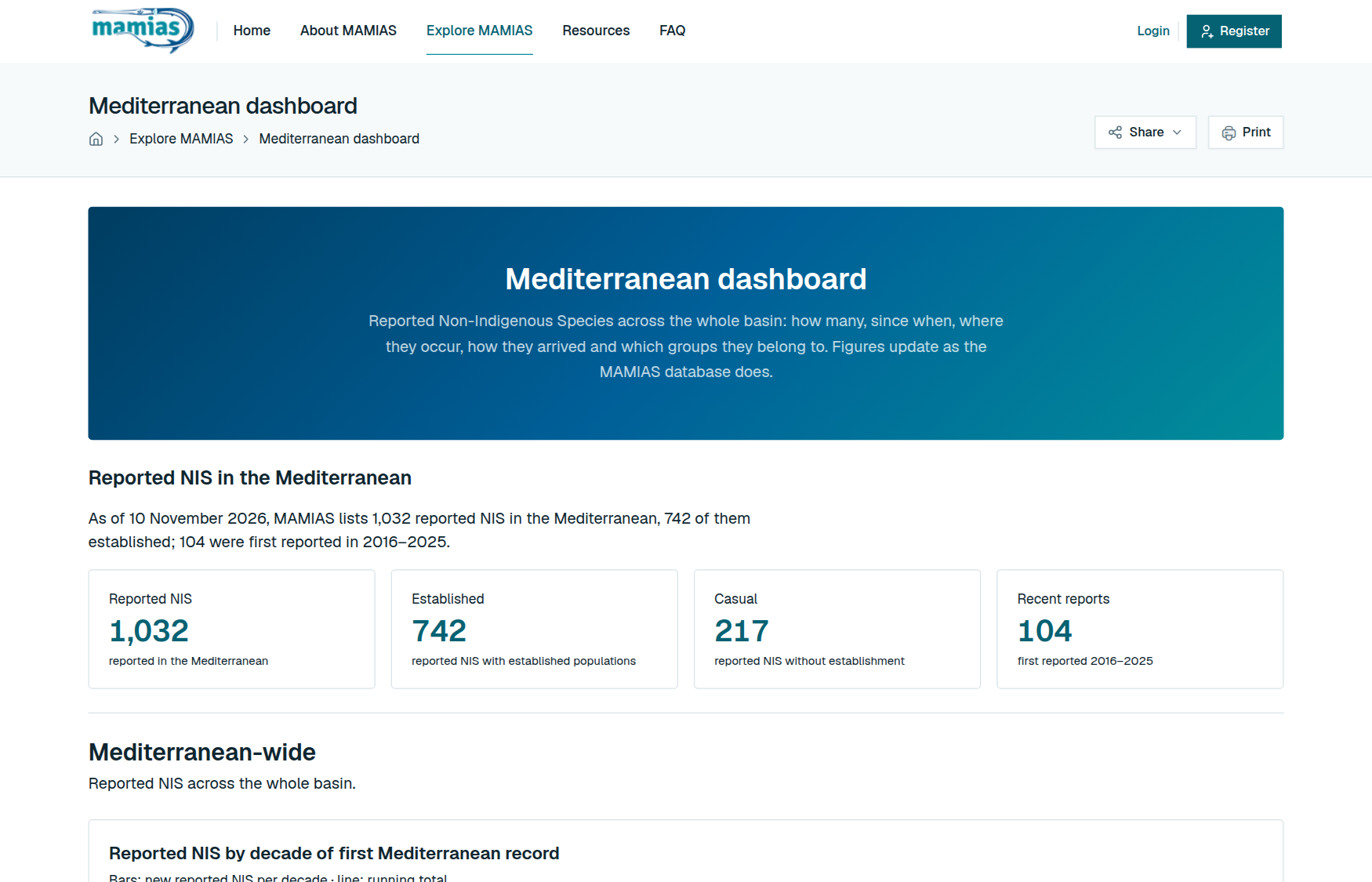
Both dashboards count only validated non-indigenous species, following the baseline of Galanidi et al. (2023).

  1. 1 Open the Mediterranean dashboard for the whole basin: how many species, since when, where, by which pathway, in which groups.
  2. 2 Open the Dashboard by country and pick a country for the same picture there.
  3. 3 On the home page, click a sub-region in MAMIAS at a glance to see it on the map.
The Mediterranean dashboard.

Related: Find your way around MAMIAS · See where species were recorded

Explore the data Where: API documentation (/api-docs) About 3 minutes

Download and cite the data

MAMIAS data is free to reuse under the CC BY 4.0 licence. No account is needed.

  1. 1 The species list as one spreadsheet: open /api/v1/species?format=csv.
  2. 2 Every approved sighting in Darwin Core: open /api/v1/occurrences/darwin-core.
  3. 3 From a script (R, Python): the JSON queries and their filters are listed at /api-docs, with an example answer each.
  4. 4 Cite MAMIAS as How to cite MAMIAS on the About page says; each API answer carries the same citation.

Tip:The API is read-only and allows 60 requests a minute, 10 for the Darwin Core file.

Related: Search the species catalogue · Export the literature to Excel

Contribute

Contribute Where: Your menu About a minute

Choose how to contribute

There are three contributor pages, each in your menu. You need a confirmed account.

  1. 1 A publication recording a non-indigenous species: My Bibliographic references › Add New Reference.
  2. 2 A sighting of a species MAMIAS already lists: My Species Reports › Report New Occurrence.
  3. 3 Many sightings from a survey or logbook: My Species Reports › Import from file.
  4. 4 A species MAMIAS does not list yet: My Species Suggestions › Suggest New NIS.
My Species Reports, with its counters.

Tip:Each page shows your submissions with their status and counters for Pending, Approved and Rejected.

Related: Add a bibliographic reference · Report a sighting · Import many sightings from a file · Suggest a new species

Contribute Where: Your menu › any contributor page › View About a minute

Follow a submission through review

Each submission is Pending Review, Approved or Rejected. You also get an email when it is received and when it is decided.

  1. 1 Read the status in your list. Hover a Rejected status for the reason; on references, click the status to read the comment.
  2. 2 Click View to open the record.
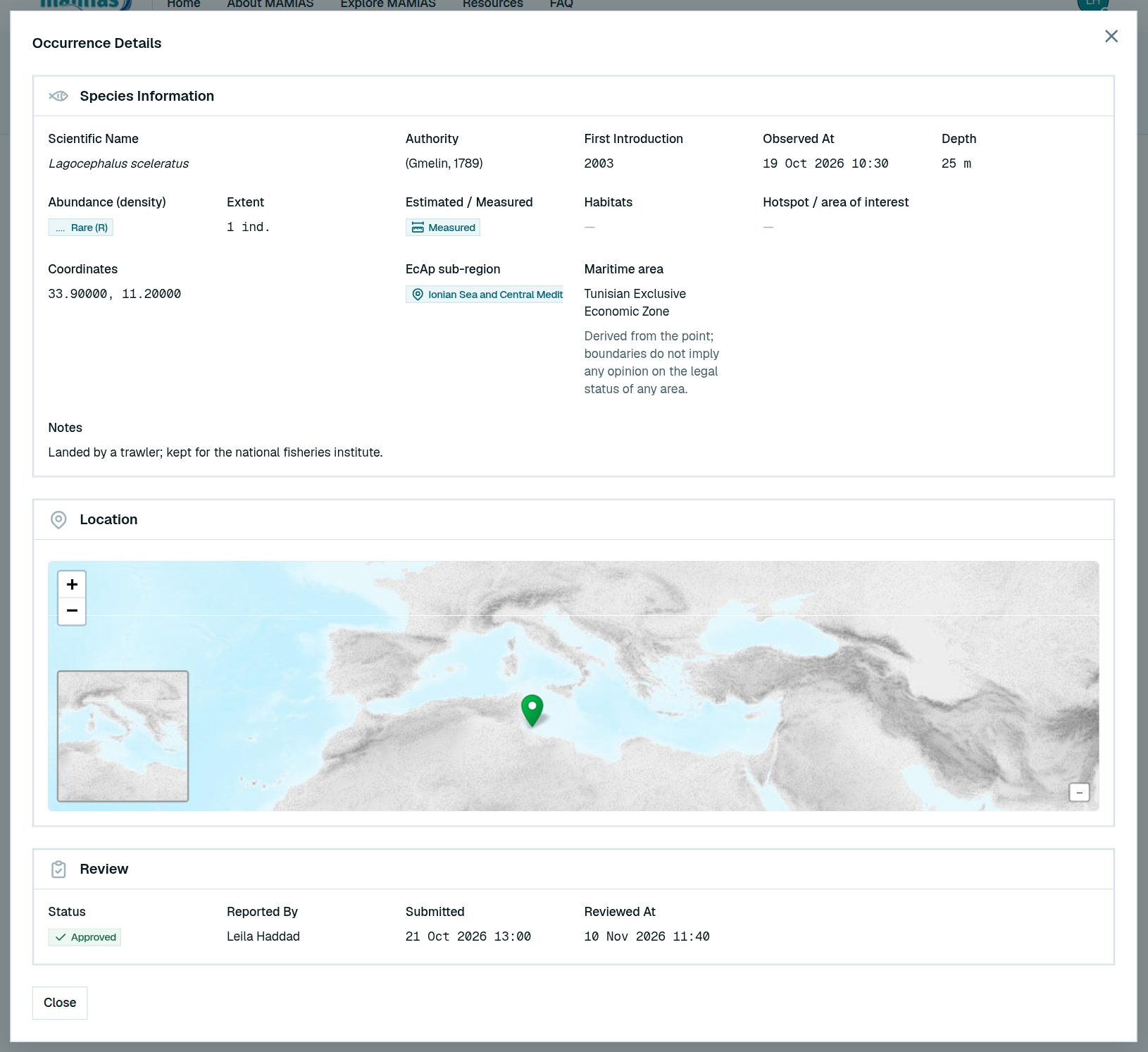
  3. 3 Its review progress line shows Submitted → Under review → Approved or Rejected, each step with its date.
  4. 4 Below it: the reviewer's notes, and on references and suggestions the Discussion.
A report's details and its review.

Tip:Reviewers sometimes correct small details before approving; the comment says what changed.

Related: Know which emails MAMIAS sends · Talk to the reviewers about a reference · Fix and resubmit a rejected report

Contribute Where: Your menu › My Bibliographic references › Add New Reference About 3 minutes

Add a bibliographic reference

A reference must be approved before it can be cited in the database.

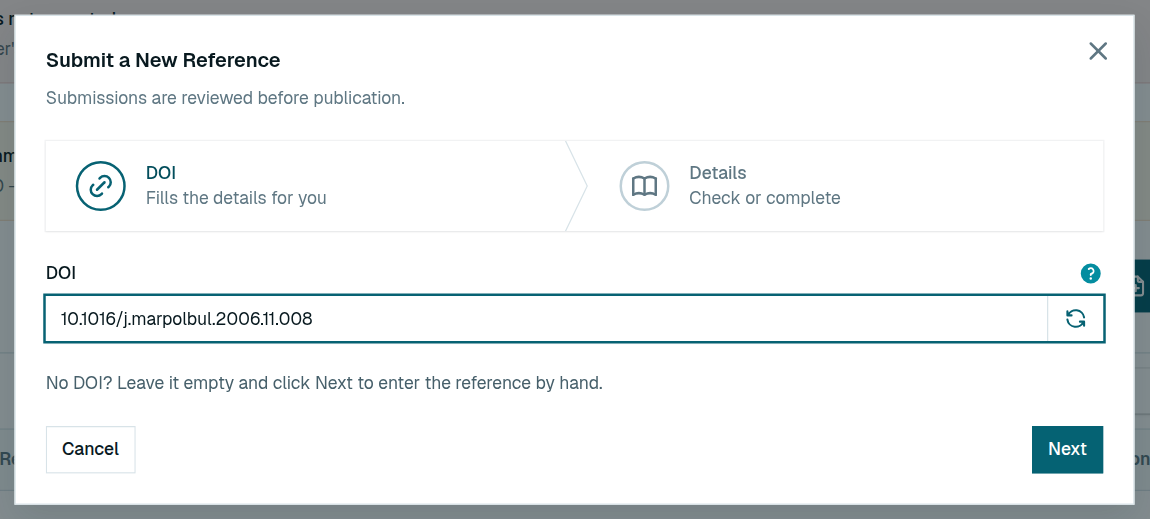
  1. 1 Click Add New Reference and paste the DOI (a link, doi:10.… or the bare DOI). Click outside the field.
  2. 2 MAMIAS fetches the title, authors, year and type from Crossref. Click Next. No DOI? Leave it empty and fill in the details by hand.
  3. 3 Check the Short reference, Resource type, Year and Full reference. Upload the PDF (10 MB at most) or paste a PDF link.
  4. 4 Click Submit. It appears as Pending Review and you get a "received" email.
The DOI step of a new reference.

Tip:"Already in MAMIAS as mamias000…" under the DOI means there is no need to submit it.

Related: Follow a submission through review · Avoid submitting a reference twice · Find one of your references

Contribute Where: My Bibliographic references › Add New Reference About a minute

Avoid submitting a reference twice

MAMIAS checks a DOI against the database before fetching anything from Crossref.

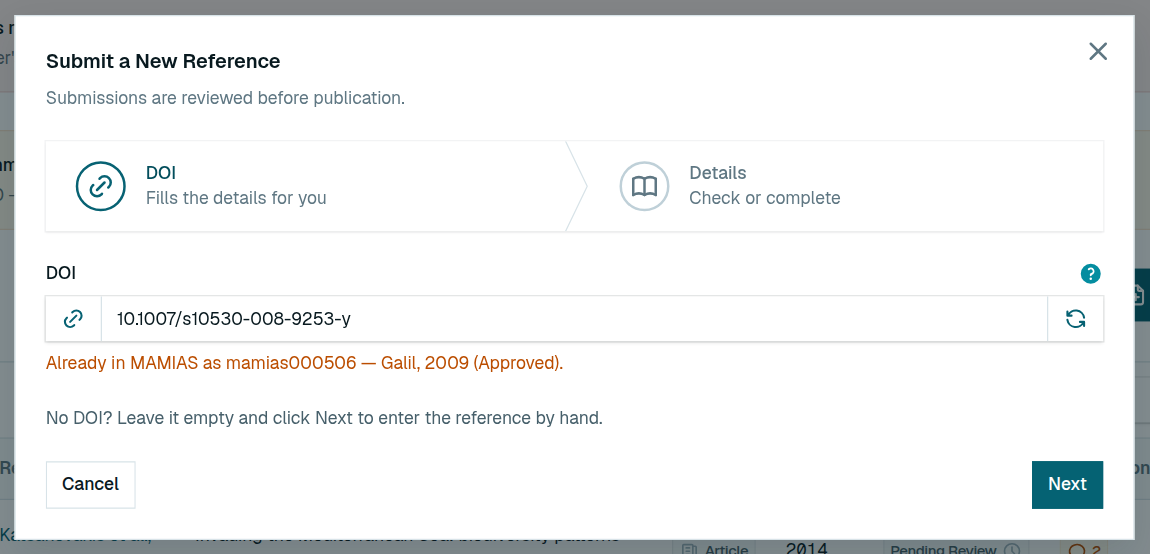
  1. 1 Already in MAMIAS as mamias000… under the DOI: the reference is already there. Stop here.
  2. 2 Nothing is fetched from Crossref in that case, so what you typed stays as it is.
  3. 3 Looks like mamias000… under the full reference: a very similar one exists. Check it is not the same publication before submitting.
A DOI that is already in MAMIAS.

Related: Add a bibliographic reference

Contribute Where: Your menu › My Bibliographic references About a minute

Find one of your references

Each row shows the code (e.g. <em>mamias000005</em>), reference, title, type, year, status and file.

  1. 1 Search looks in the code, short reference, DOI and title.
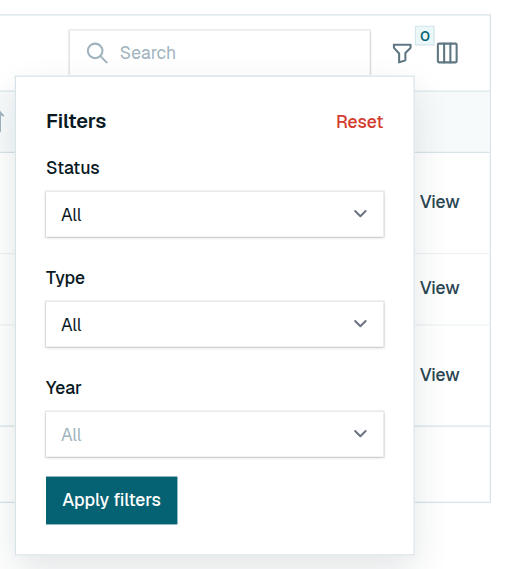
  2. 2 The filter button narrows by status, type or year: choose, then Apply filters. Reset clears them.
  3. 3 Click the reference to open the publication. PDF, when shown, opens a free legal copy in a viewer.
The filters, by status, type and year.

Tip:A PDF you uploaded is for the reviewers only and is not shown in the list.

Related: Add a bibliographic reference · Talk to the reviewers about a reference

Contribute Where: My Bibliographic references › Discussion badge About 2 minutes

Talk to the reviewers about a reference

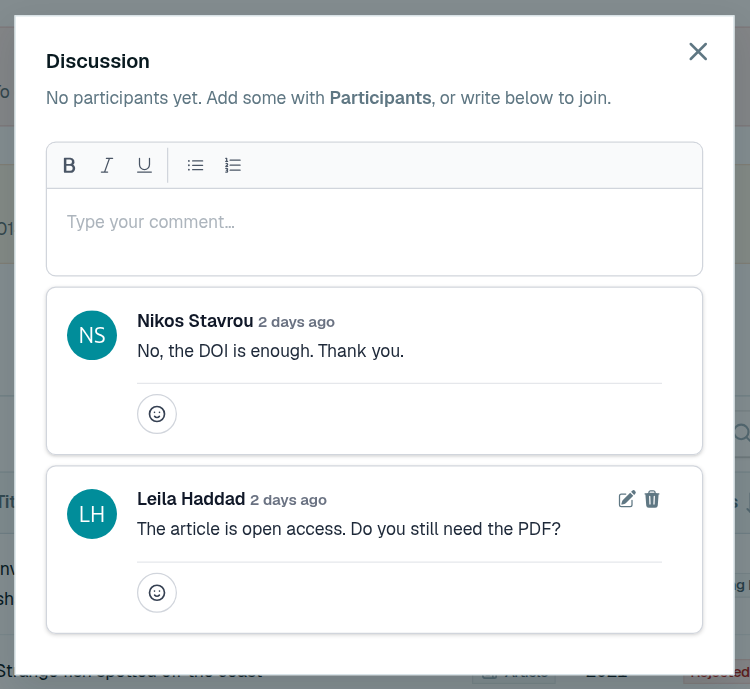
Every reference has a Discussion. It is also the place to disagree with a rejection, which is final for references.

  1. 1 Click the Discussion badge on the reference. Its number is how many messages it holds.
  2. 2 Write in the box at the top. Edit or delete your earlier messages with the icons on the right.
  3. 3 An amber badge, and a banner at the top of the page, mean new replies since your last message. Replying clears it.
A discussion between the submitter and a reviewer.

Tip:A rejected reference cannot be sent again; common reasons are out of scope, not a usable source, or already in MAMIAS.

Related: Follow a submission through review · Add a bibliographic reference

Contribute Where: Your menu › My Species Reports › Report New Occurrence About 4 minutes

Report a sighting

Only species already in the catalogue can be reported. Each report is checked before it is published.

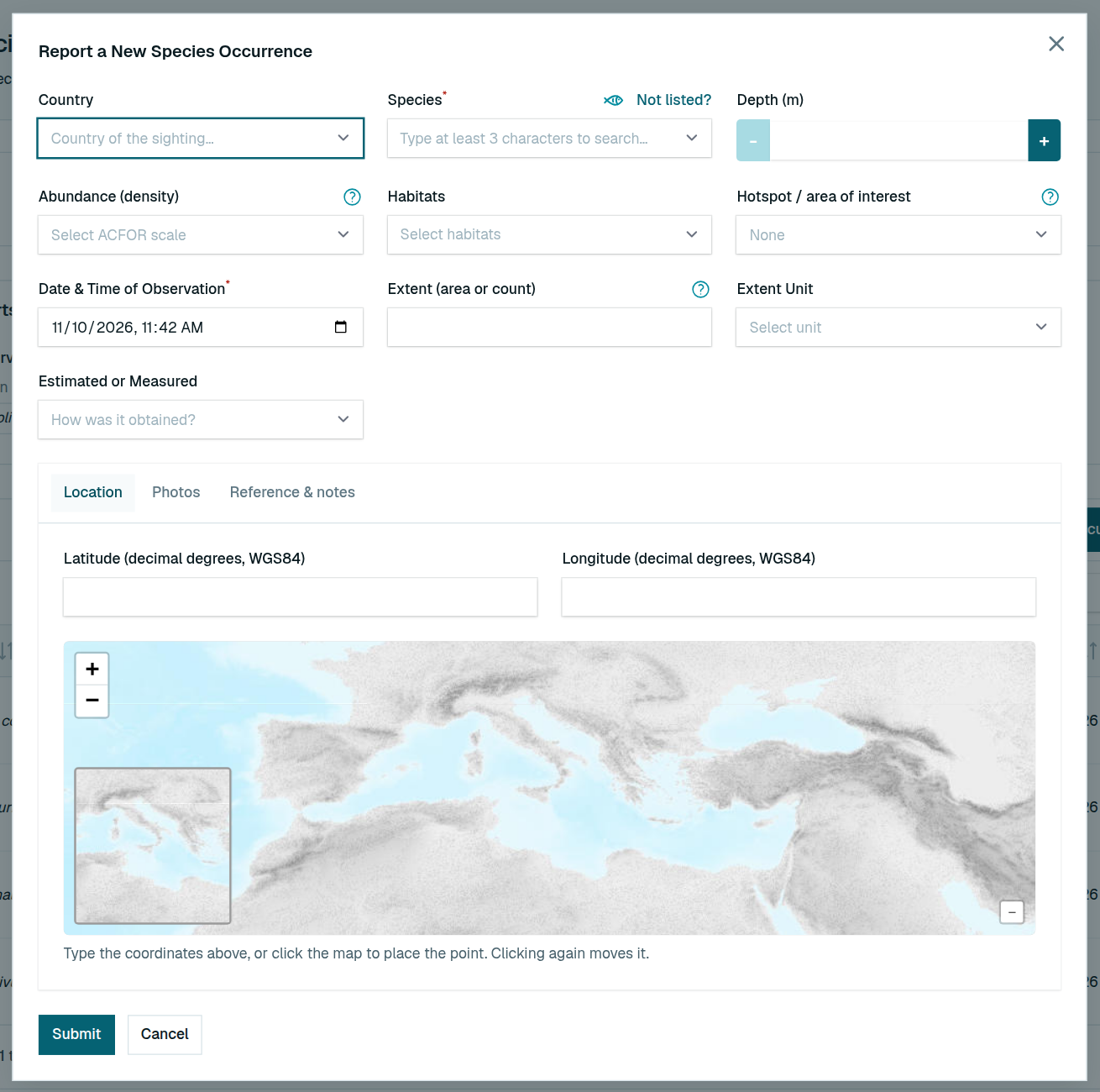
  1. 1 Pick the Country (optional; species first recorded there come on top), then the Species: type at least three letters.
  2. 2 Set the Date & Time of Observation, and as far as you know them Depth, Abundance (ACFOR), Habitats, Hotspot and Extent (measured or estimated).
  3. 3 On Location, type the latitude and longitude or click the map, in the sea, not on the shore. The point must lie in the chosen country's sea area, or the form refuses it.
  4. 4 Add Photos (JPEG, PNG or WebP, 5 MB each) and, under Reference & notes, the publication and how you identified it.
  5. 5 Click Submit. It appears as Pending Review and you get a "received" email.
The sighting report form.

Tip:The pin's bubble on the map sums up the report: species, coordinates, the fields you filled in and Observed on dd/mm/yyyy.

Related: Report a species MAMIAS does not list · Read your list of reports · Import many sightings from a file

Contribute Where: My Species Reports › Not listed? About a minute

Report a species MAMIAS does not list

A species missing from the report form or the import template is not catalogued yet.

  1. 1 Click Not listed? above the Species field. My Species Suggestions opens in a new tab.
  2. 2 Suggest the species there.
  3. 3 Once it is accepted, report your sightings. For imports, download the template again: its list then includes the species.

Tip:An import row naming a valid species MAMIAS does not list comes back with a Suggest link that fills in the form.

Related: Report a sighting · Import many sightings from a file · Suggest a new species

Contribute Where: Your menu › My Species Reports About a minute

Read your list of reports

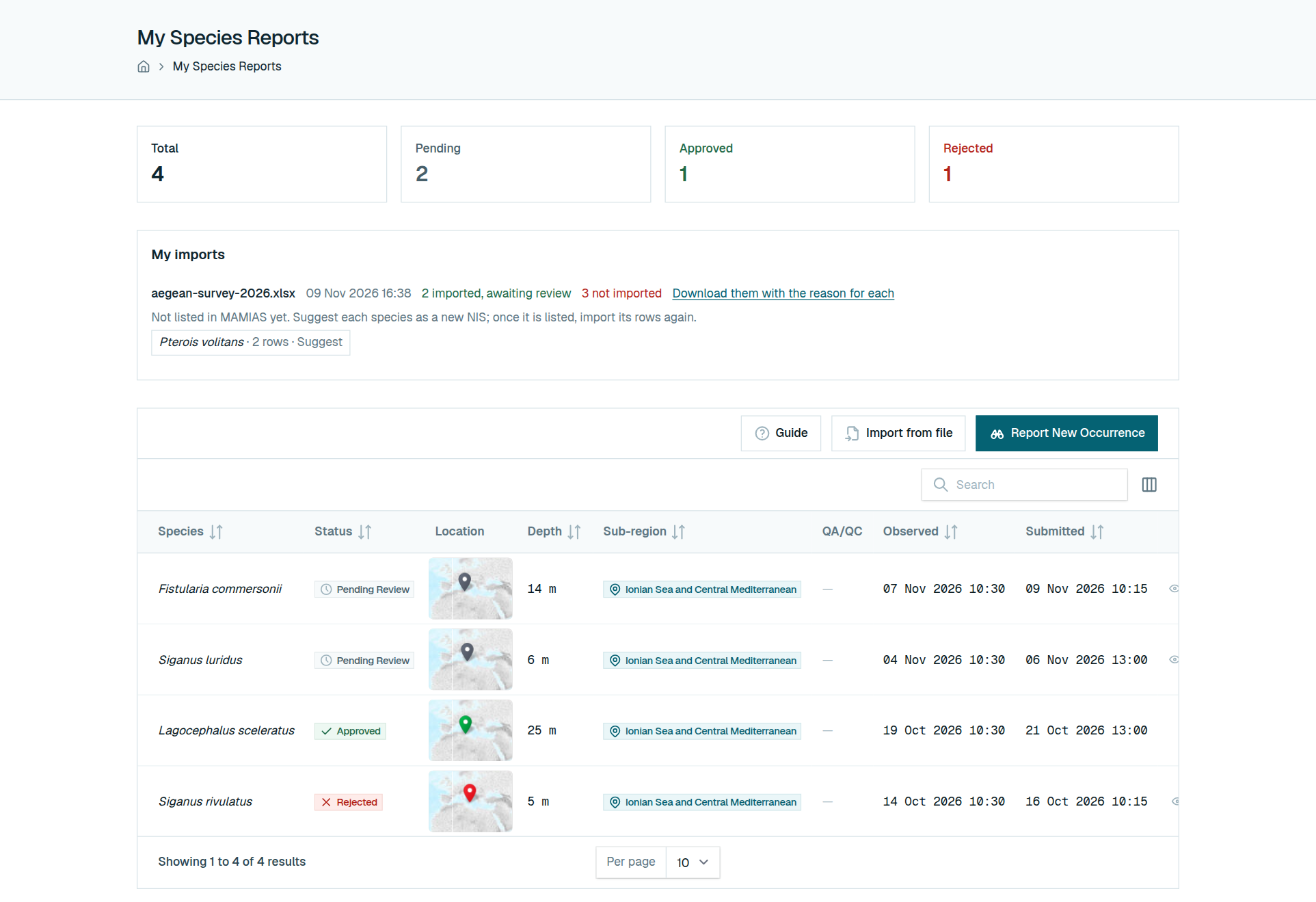
The counters give your Total, Pending, Approved and Rejected reports. The newest come first.

  1. 1 Each row shows the species, status, a small map, depth, and when you observed and submitted it, as dd/mm/yyyy.
  2. 2 The pin takes the status's colour: green approved, grey pending, red rejected.
  3. 3 Hover the map thumbnail for the same bubble as on the form: species, coordinates and the fields you filled in.
  4. 4 The row's actions (View, Withdraw, Revise & resubmit) are in its ⋮ menu.
My Species Reports, with its counters.

Tip:An approved report appears on the species' page in the data explorer.

Related: Follow a submission through review · Withdraw a pending report · Fix and resubmit a rejected report

Contribute Where: My Species Reports › ⋮ › Withdraw About a minute

Withdraw a pending report

A pending report cannot be edited, but it can be withdrawn. An approved report can no longer be changed.

  1. 1 Find the report marked Pending Review.
  2. 2 Open its ⋮ menu and choose Withdraw.
  3. 3 Confirm. This cannot be undone.

Tip:Spotted a mistake in a pending report? Withdraw it and report the sighting again.

Related: Read your list of reports · Fix and resubmit a rejected report

Contribute Where: My Species Reports › ⋮ › Revise & resubmit About 3 minutes

Fix and resubmit a rejected report

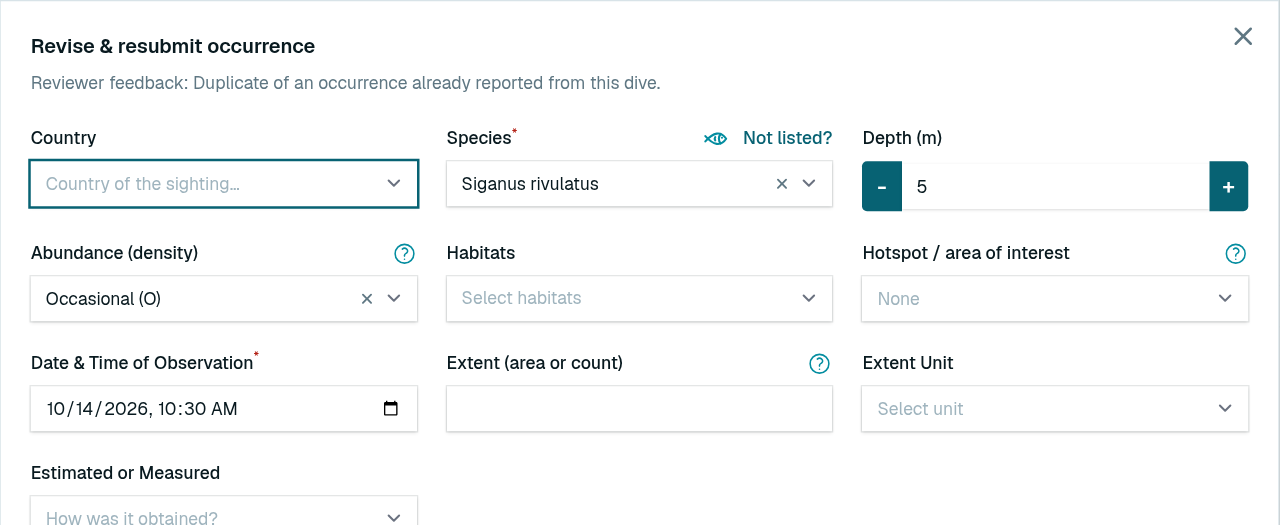
A report can be edited only once it is rejected. Common reasons are a pin on land, a native look-alike in the photo, or a sighting already reported.

  1. 1 Hover the Rejected status to read the reason.
  2. 2 Open the row's ⋮ menu and choose Revise & resubmit. The reviewer's feedback is at the top of the form.
  3. 3 Make the changes it asks for, then click Resubmit for review.
  4. 4 The report returns to Pending Review; reviewers see why it was rejected the first time.
Revising a rejected report.

Related: Follow a submission through review · Withdraw a pending report

Contribute Where: My Species Reports › Import from file About 10 minutes

Import many sightings from a file

For surveys and logbooks. Only the MAMIAS template (.xlsx) is accepted: up to 500 rows and 5 MB per file, five imports an hour.

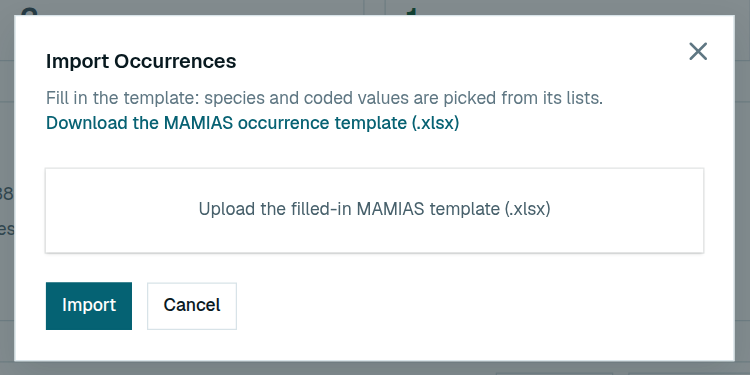
  1. 1 Click Import from file, then Download the MAMIAS occurrence template.
  2. 2 Fill in the Occurrences sheet, one sighting per row. Each row needs a species, a date and coordinates in the Mediterranean; species, abundance, habitats and country come from dropdown lists.
  3. 3 Upload the file, check that each column matches the right field, and click Import.
  4. 4 Follow it under My imports; you also get an email when it finishes.
The import window, with the link to the template.

Tip:Dropdowns do not open? Excel is in Protected View: click Enable Editing.

Related: Report a sighting · Report a species MAMIAS does not list · Check what an import brought in

Contribute Where: My Species Reports › My imports About 2 minutes

Check what an import brought in

The import runs in the background. Every imported sighting waits for review like any other report.

  1. 1 Open My imports at the top of the page for progress and result.
  2. 2 Download the file of rows that were not imported, each with its reason.
  3. 3 Correct those rows and import that file again. A row you already reported (same species, date and point) is skipped, not doubled.
My imports: what came in, what did not, and species to suggest.

Tip:Species MAMIAS does not list are named with a Suggest link.

Related: Report a species MAMIAS does not list · Import many sightings from a file

Contribute Where: Your menu › My Species Suggestions › Suggest New NIS About 3 minutes

Suggest a new species

For a species MAMIAS already lists, report a sighting instead.

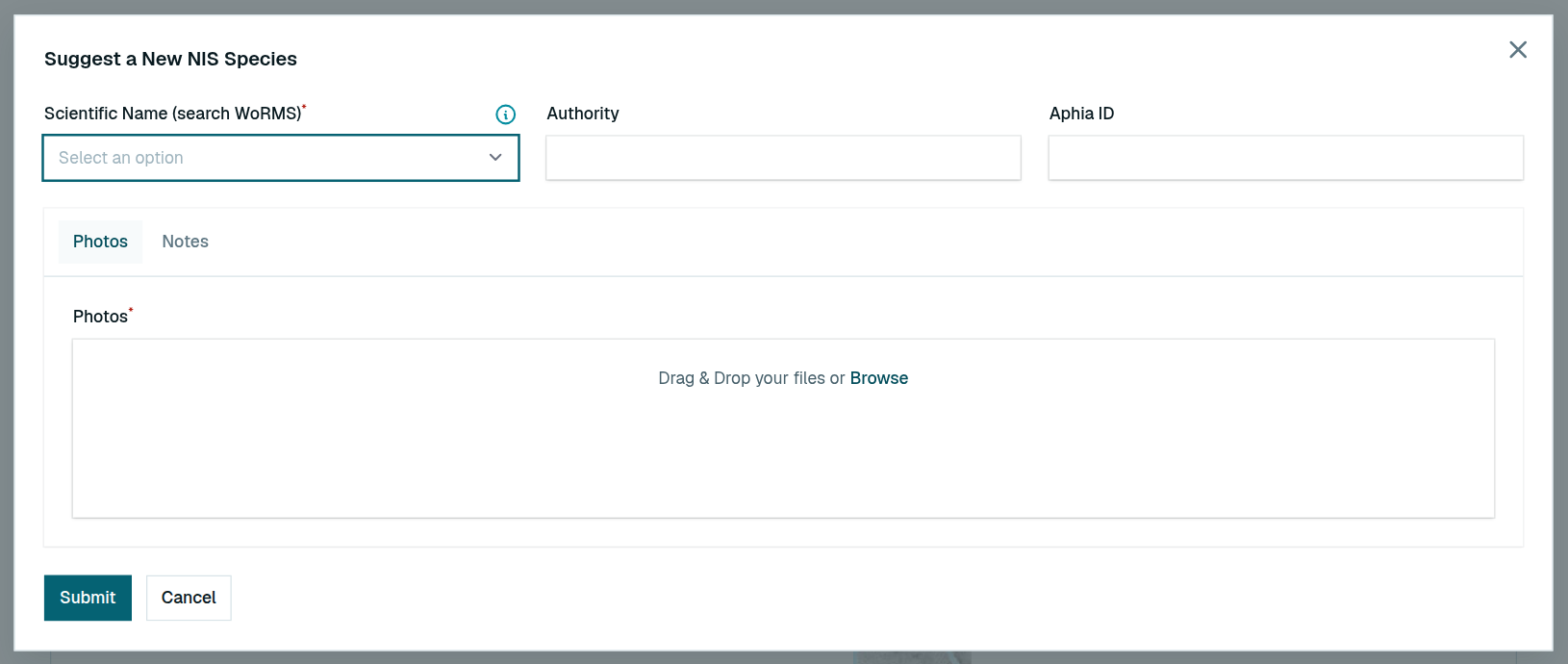
  1. 1 Click Suggest New NIS and type at least four letters of the Scientific Name. Names come from WoRMS; prefer the one marked [verified].
  2. 2 Authority and Aphia ID fill in by themselves.
  3. 3 Add Photos (required; JPEG, PNG or WebP, 5 MB each).
  4. 4 Under Notes, link the publications that record it in the Mediterranean (+ adds one by DOI). Click Submit.
The species suggestion form.

Tip:An approved species joins the catalogue as a draft for the team to complete before it is published.

Related: Follow a submission through review · Report a species MAMIAS does not list · Change, discuss or resubmit a suggestion

Contribute Where: Your menu › My Species Suggestions About 2 minutes

Change, discuss or resubmit a suggestion

Common rejection reasons are a native species, one already catalogued, or not enough evidence it was found here.

  1. 1 While a suggestion is Pending Review, Edit opens the form again. Once decided, it can no longer be edited.
  2. 2 Click View; at the bottom, Discussion is where you talk with the team. Replies are not emailed, so look back for them.
  3. 3 If rejected, hover the status for the reason, then click Resubmit. A new copy goes back to Pending Review; edit it to add what was missing.
The reason for a rejection, on hover.

Tip:The rejected suggestion stays in your list beside the new copy.

Related: Follow a submission through review · Suggest a new species

Your account

Your account Where: Sign in › sign up for an account About 2 minutes

Create an account

You need an account only to contribute. It is free.

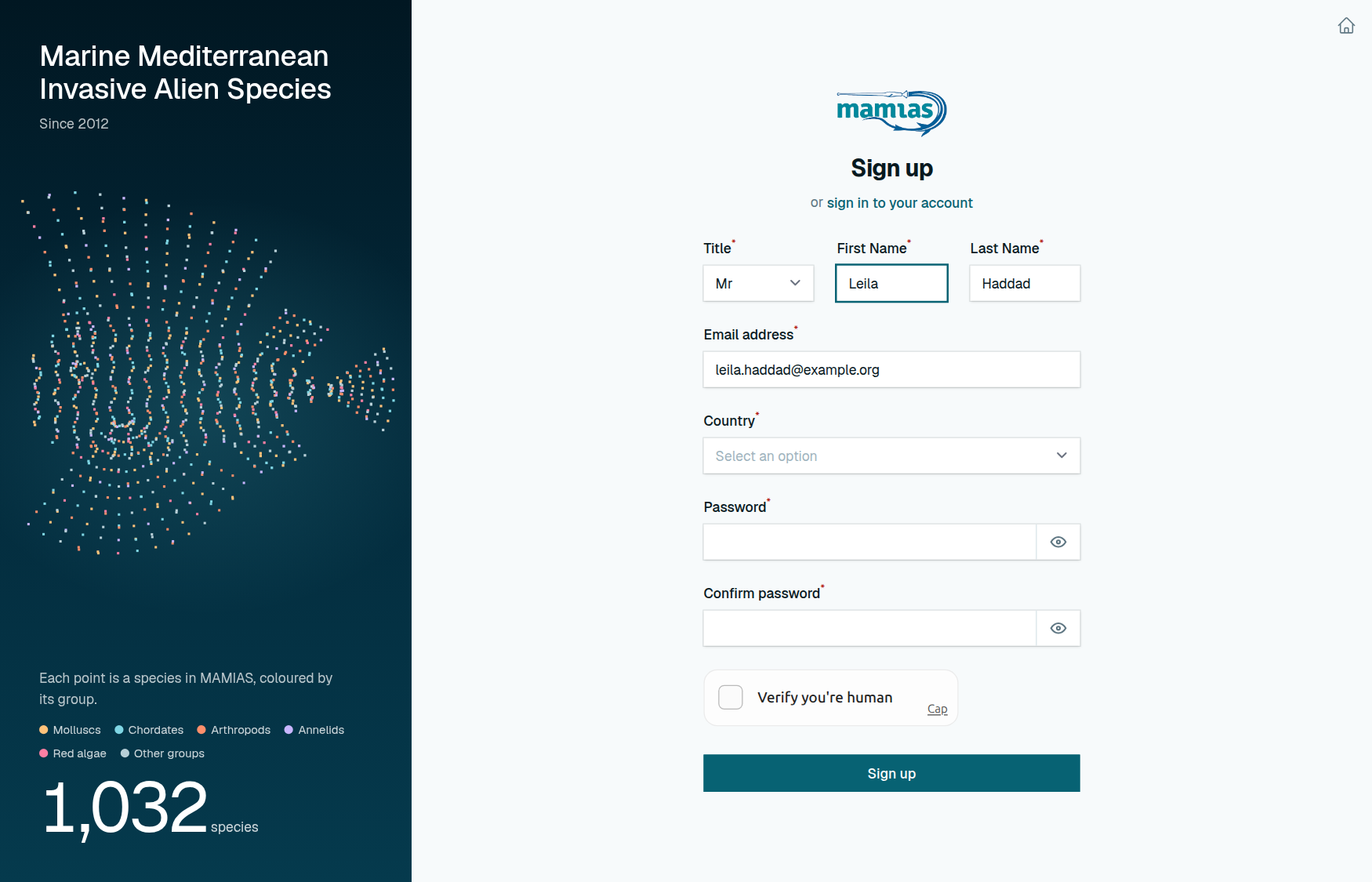
  1. 1 Open /login and click sign up for an account.
  2. 2 Fill in your title, first and last name, country, email address and a password, then tick the human check.
  3. 3 Click Sign up. MAMIAS emails you a confirmation link.
  4. 4 Click Visit MAMIAS in that email to confirm your address.
The sign-up form.
The sign-up form.

Tip:Until you confirm your address you can sign in, but not contribute.

Related: Confirm your email address · Sign in and out · Keep your profile up to date

Your account Where: Confirmation email About a minute

Confirm your email address

MAMIAS sends a confirmation link when you sign up or change your email address.

  1. 1 Open the email and click Visit MAMIAS.
  2. 2 No email after a few minutes? Check your spam folder.
  3. 3 Still nothing: use the link on the confirmation screen to send it again.

Tip:Can sign in but not open My Species Reports? Your address is not confirmed yet.

Related: Create an account · Sign in and out
Your account Where: Sign in (/login) About a minute

Sign in and out

After signing in you land on the home page.

  1. 1 Open /login and enter your email and password.
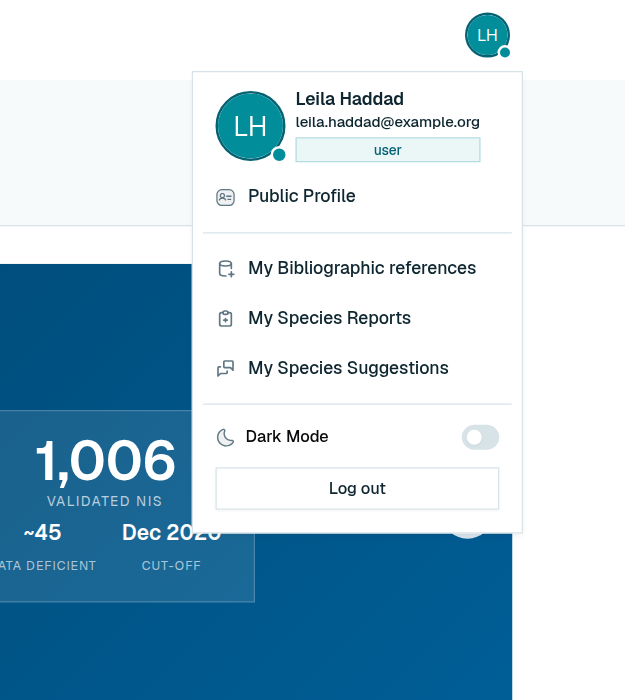
  2. 2 Click your name at the top right to open your menu.
  3. 3 It holds Public Profile, My Bibliographic references, My Species Reports, My Species Suggestions and Log out.
Your menu.
Your menu.

Related: Reset a forgotten password · Keep your profile up to date

Your account Where: Sign in › Forgot password? About a minute

Reset a forgotten password

You can reset your password yourself.

  1. 1 Click Forgot password? on the sign-in page.
  2. 2 Enter your email address. MAMIAS emails you a link.
  3. 3 Open the link and choose a new password.

Related: Sign in and out

Your account Where: Your menu › Public Profile About 2 minutes

Keep your profile up to date

Your profile helps the MAMIAS team know whom to ask about a record.

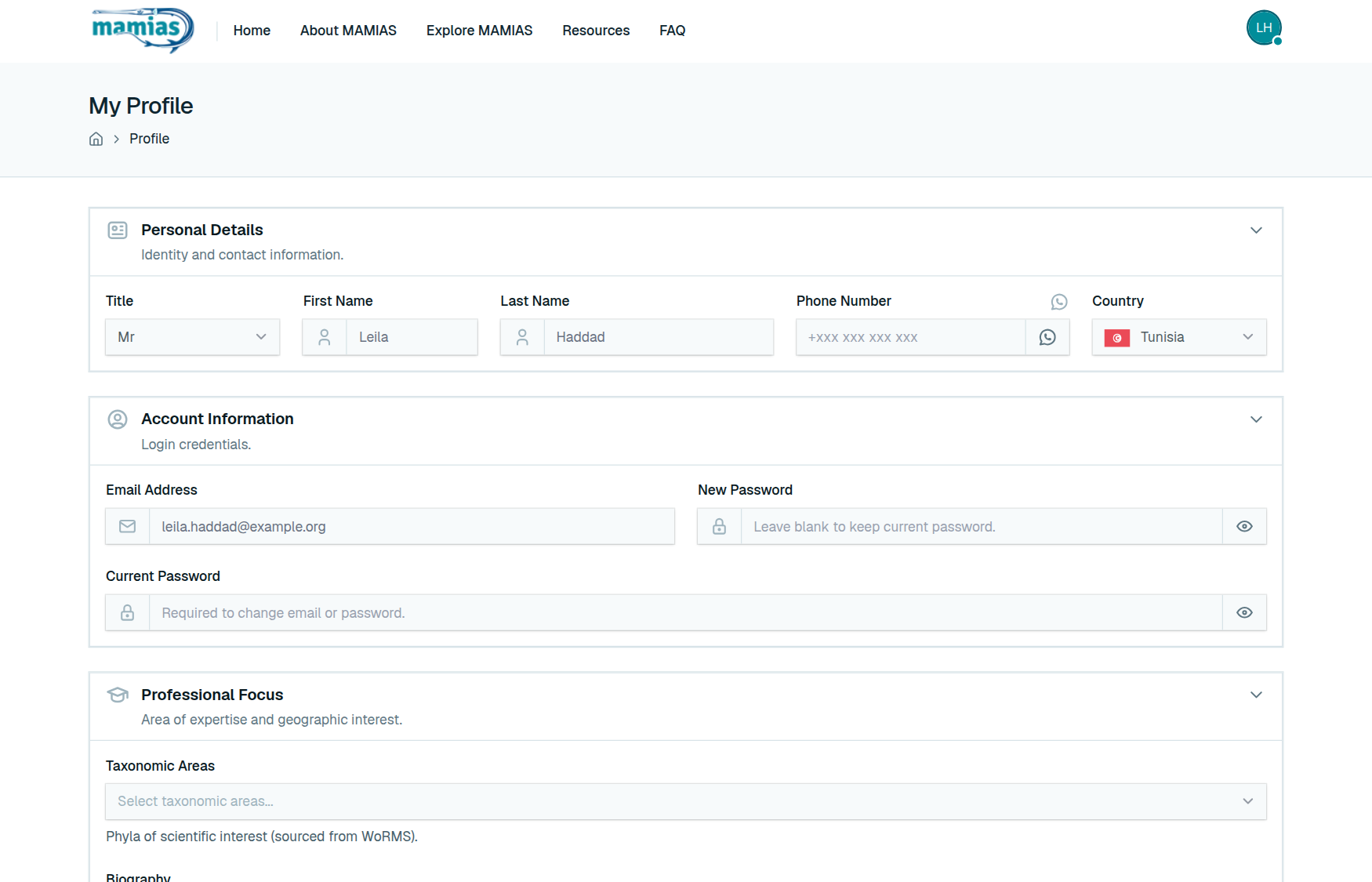
  1. 1 Personal details: title, name, phone (a button checks whether it is on WhatsApp) and country.
  2. 2 Account: email address and password. A new email address must be confirmed again.
  3. 3 Professional focus: the taxonomic groups you know, a short biography, and the EcAp sub-regions and countries you work in.
  4. 4 Click Save Data.
Your profile.
Your profile.

Related: Confirm your email address · Sign in and out

Your account Where: Your inbox About 2 minutes

Know which emails MAMIAS sends

MAMIAS emails you only about your own account and submissions. Their buttons open the site in a normal browser tab.

  1. 1 Account: confirm your address when you sign up or change it; reset your password when you ask.
  2. 2 Received: each reference, sighting report or species suggestion you submit is acknowledged as received and pending review.
  3. 3 Decided: another email when it is approved or rejected, and when an import from file finishes.
  4. 4 Comments: a reviewer's new comment on your reference. Suggestion discussions are not emailed.

Tip:The Terms of use set the conditions for contributing; the Legal notice names the publisher and host.

Related: Choose your cookies · Follow a submission through review

No task matches this search.